
The Requests page
Open Requests from the sidebar rail. A badge on the icon shows how many requests are pending. Filter the list by Pending, Completed, Cancelled, or Rejected, or search by name.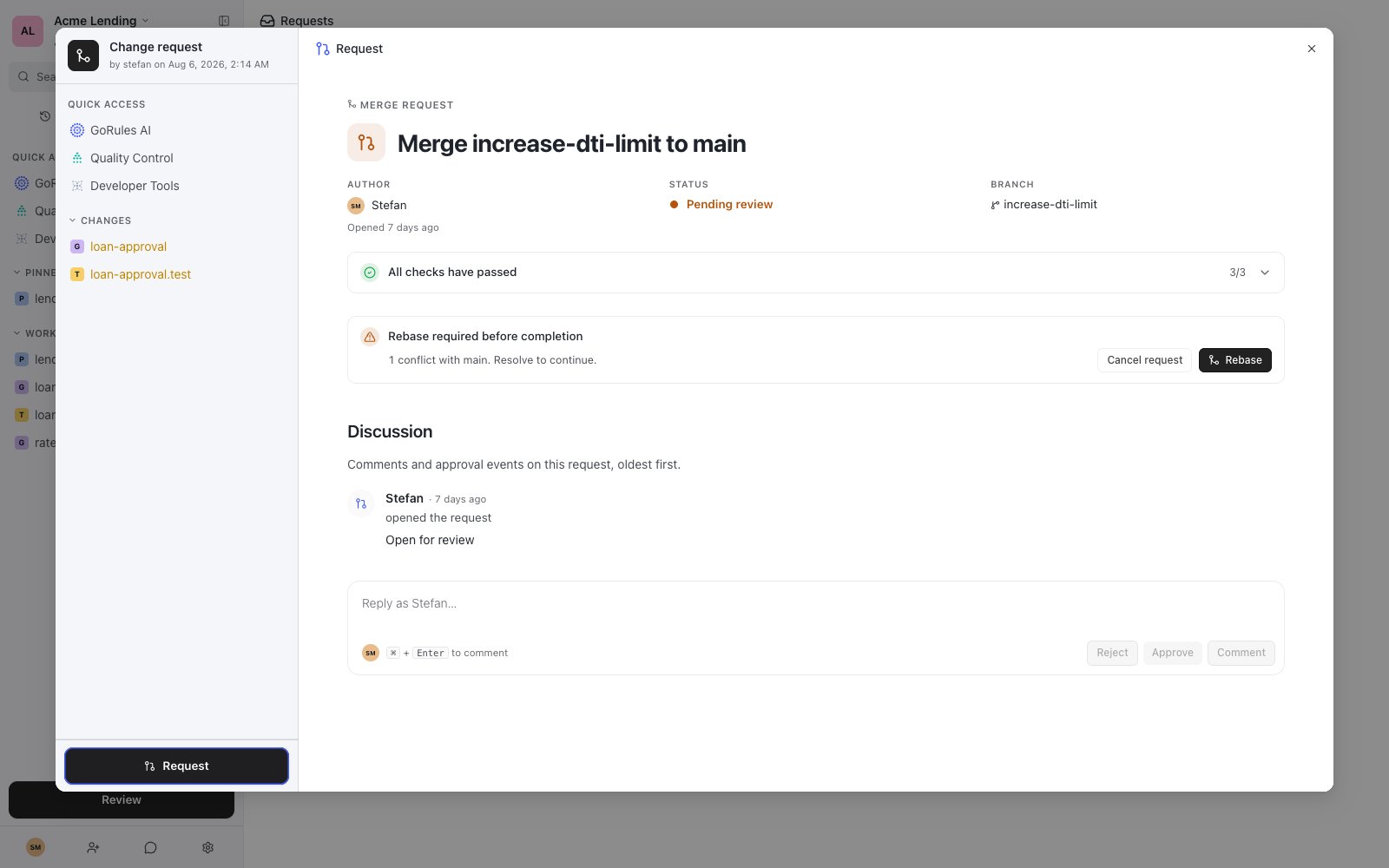
The Requests page with pending requests
Merge requests are opened from the Review page - see Review & save. Deploy requests open automatically when you deploy a release to an environment marked “requires review” - see Releases.
Inside a request
Selecting a request opens its detail pane. The header shows the essentials: Author, Branch, Type, Status, Approvals (for example “1/2 approval groups”), and when it was opened. For merge requests you can also browse the proposed file changes, shown as a diff against main.Discussion
The Discussion section is a timeline of everything that happened on the request, oldest first: who opened it, pushed changes, approved, withdrew approval, rejected it, completed it, or cancelled it - along with any comments. The composer at the bottom offers four actions: Comment, Approve, Reject, and Withdraw (which takes back your earlier approval).Authors can’t approve or reject their own request. Every request needs a second pair of eyes.
Completing a request
The completion block at the bottom of the pane tells you what’s left:
You can abandon a request at any time with Cancel request. Cancelling leaves the branch and its commits intact - only the request is closed.
Approval requirements
Project settings define what a request needs before it can be completed:- No approvals: actions go through directly, without a request.
- Request without approvals: a request is created for visibility, and anyone can complete it.
- Any one group: one approval from any of the project’s approval groups is enough.
- One per group: each approval group must provide at least one approval.