A branch is an independent copy of your project’s rules. Changes you save on a branch don’t affect main - or anyone working on it - until you merge them. This lets you prepare larger changes over several sessions, try out ideas safely, and route work through review before it goes live. Every project starts with a main branch, which is the default. Your workspace always points at one branch, and everything you edit is a draft on top of it.

Switching and creating branches

The branch selector sits in the sidebar header. Click it to see all branches, search them, or switch to another one. Your unsaved draft stays with the branch it belongs to, so switching back later picks up where you left off. You create a branch from the Review page: choose the New branch card when saving, adjust the suggested name if you like, and click Create branch & save. Your changes land on the new branch, leaving main untouched. See Review & save for the full flow.

History

The History page, available from the sidebar rail, lists every commit on a branch - who saved it, when, and with what message. Use the branch picker to view another branch’s history, and the search box to filter commits by message.
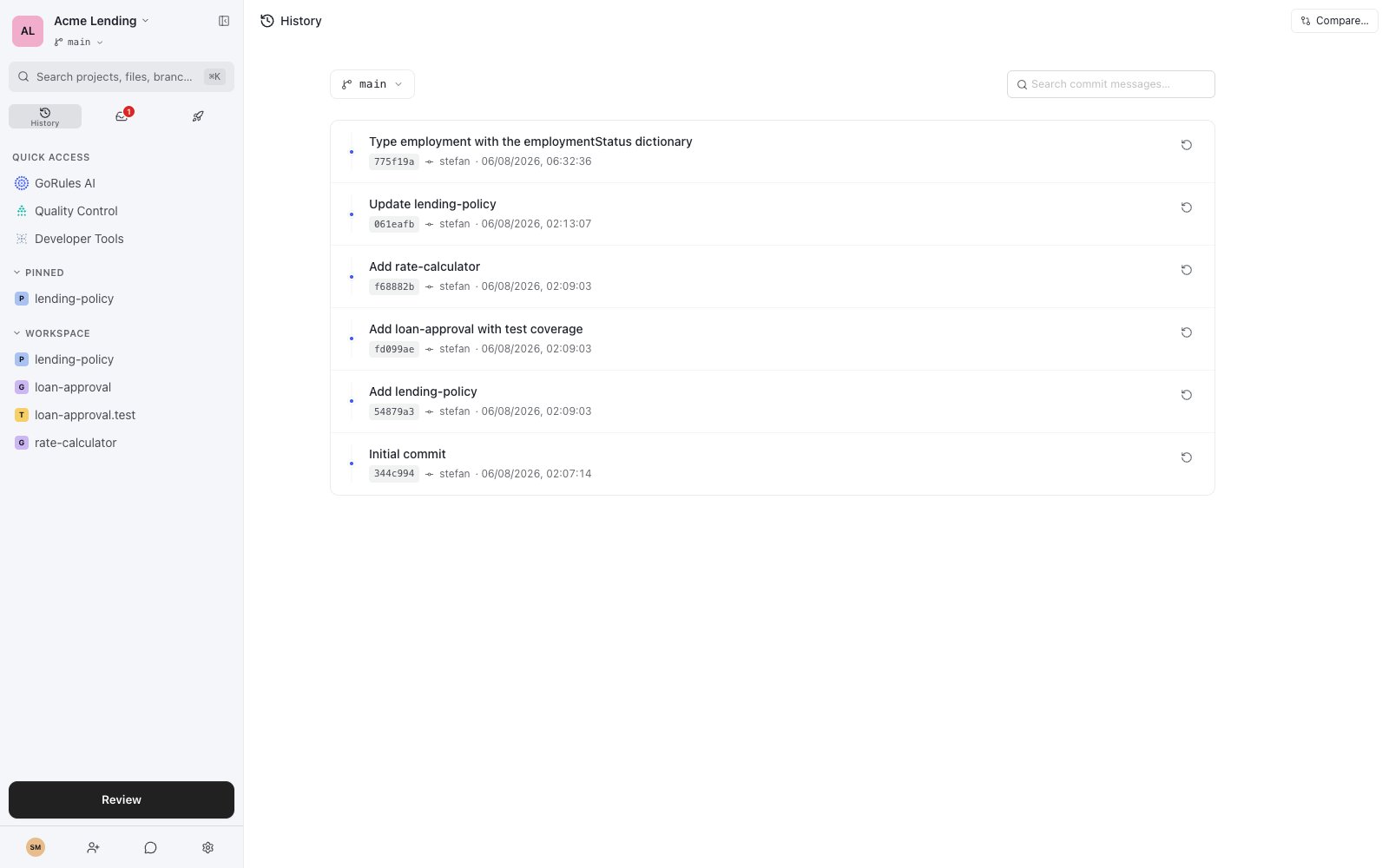
History page showing a searchable list of commits with author, message, and timestamp

The History page listing commits on a branch

Each commit offers a few actions:
  • Inspect commit opens the full set of files as they existed at that commit, so you can see exactly what a rule looked like at any point in time.
  • Compare with… opens the compare view with this commit as one side.
  • Copy commit ID copies the commit’s identifier, useful when referencing a specific version with teammates.
  • Revert to this commit creates a new branch off the latest main commit with the contents of the selected commit applied. Nothing is overwritten - you review the revert branch and merge it like any other change.

Comparing versions

The compare view shows the differences between any two points in your project: pick a base and a target, each of which can be a branch, a release, or an individual commit. Graphs, tests, and policies display a visual diff, and you can switch to a source view for a line-by-line comparison. Use it to answer questions like “what changed between the March release and today?” before merging or deploying.

Keeping a branch in sync

When several people work on the same project, branches can drift apart. The BRMS surfaces each situation with a clear prompt, so you never have to guess what state you’re in.

Updates on the server

If a teammate saved to your branch after you last synced, you’ll see “Branch has updates on server”. Click Pull latest to bring your local copy up to date. Pull before saving so your commit builds on the latest version.

Conflicts with the remote branch

If you and a teammate changed the same files, pulling shows “Conflicts with remote” and a Resolve conflicts action. This opens the Merge Workbench, which walks you through each conflicting file with two sides: Mine (your version) and Remote (the server’s version). For each conflict, pick the side to keep with Use Mine or Use Remote, or apply one side everywhere with Use Mine for all. Toggle between the Visual and Code views to compare the two sides - the visual diff is available for graphs, tests, and policies. Once every conflict is resolved, apply the merge to finish syncing.

Falling behind main

While you work on a branch, main keeps moving. When that happens the Review page shows “Branch needs rebase” with how far behind you are, such as “Branch is 4 commits behind main”. Click Pull from main to bring those commits into your branch. Save your draft first - rebasing refreshes your local state. If your branch changed the same files as main, the prompt shows a conflict count instead. Click Resolve & rebase to open the Merge Workbench, this time with sides labelled Mine and Main. Resolve each conflict, then apply the rebase. A branch must be up to date with main before it can be merged.

Rewritten branch history

Occasionally a branch’s history is rewritten on the server - for example, after a revert. If you have no local edits, the BRMS syncs quietly. If you do, a “Branch history has changed” alert appears with two choices: Save local changes re-applies your edits on top of the new history, and Reset to remote discards them in favour of the server’s version.

Merging a branch

When your branch is ready, open Review & save and either merge to main directly or create a merge request for approval. Merge requests are covered in Requests. After merging, the changes are eligible for a release - see Releases.