
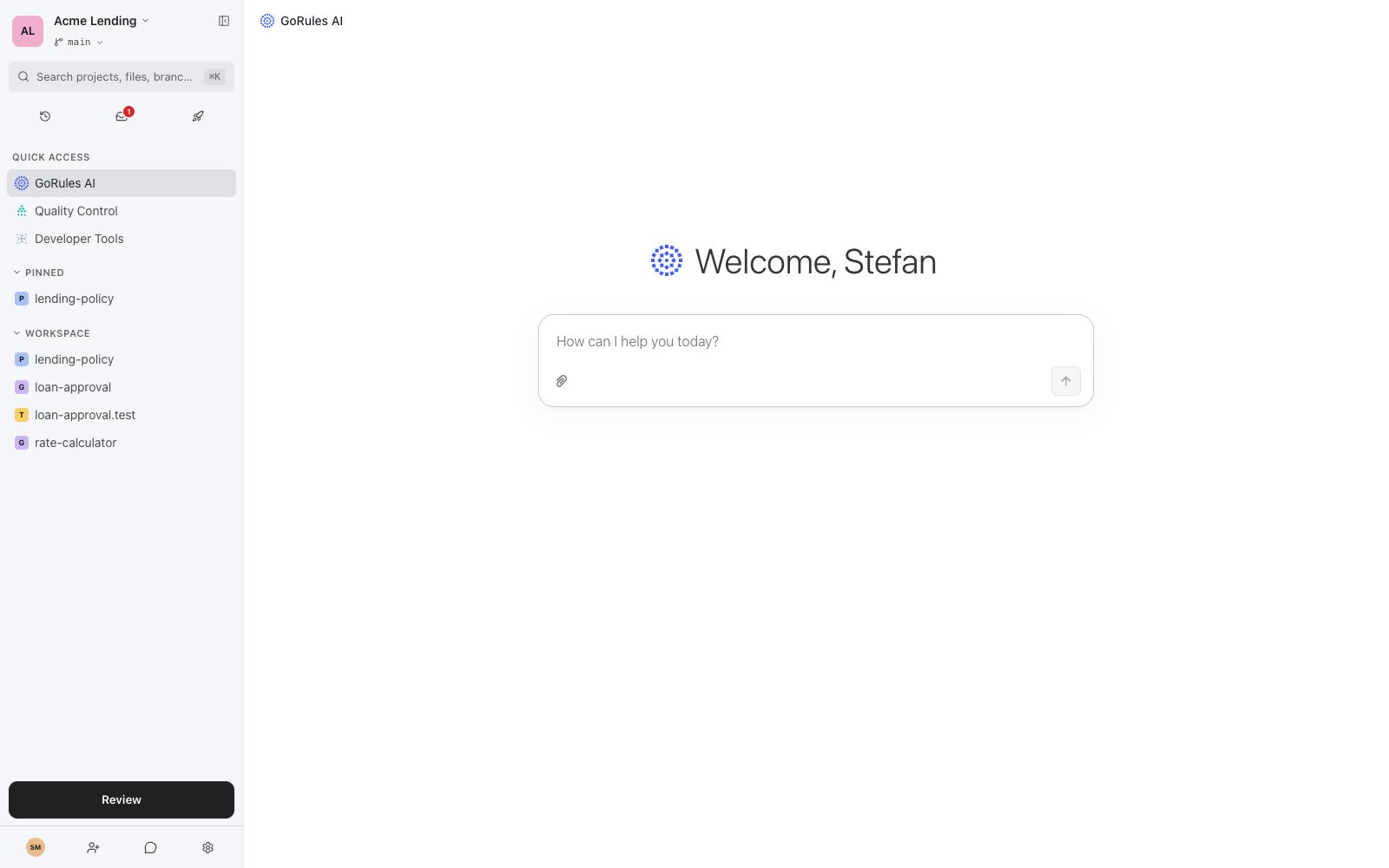
The workspace sidebar with GoRules AI open
The sidebar
Document types
Click New in the Workspace section to create a document: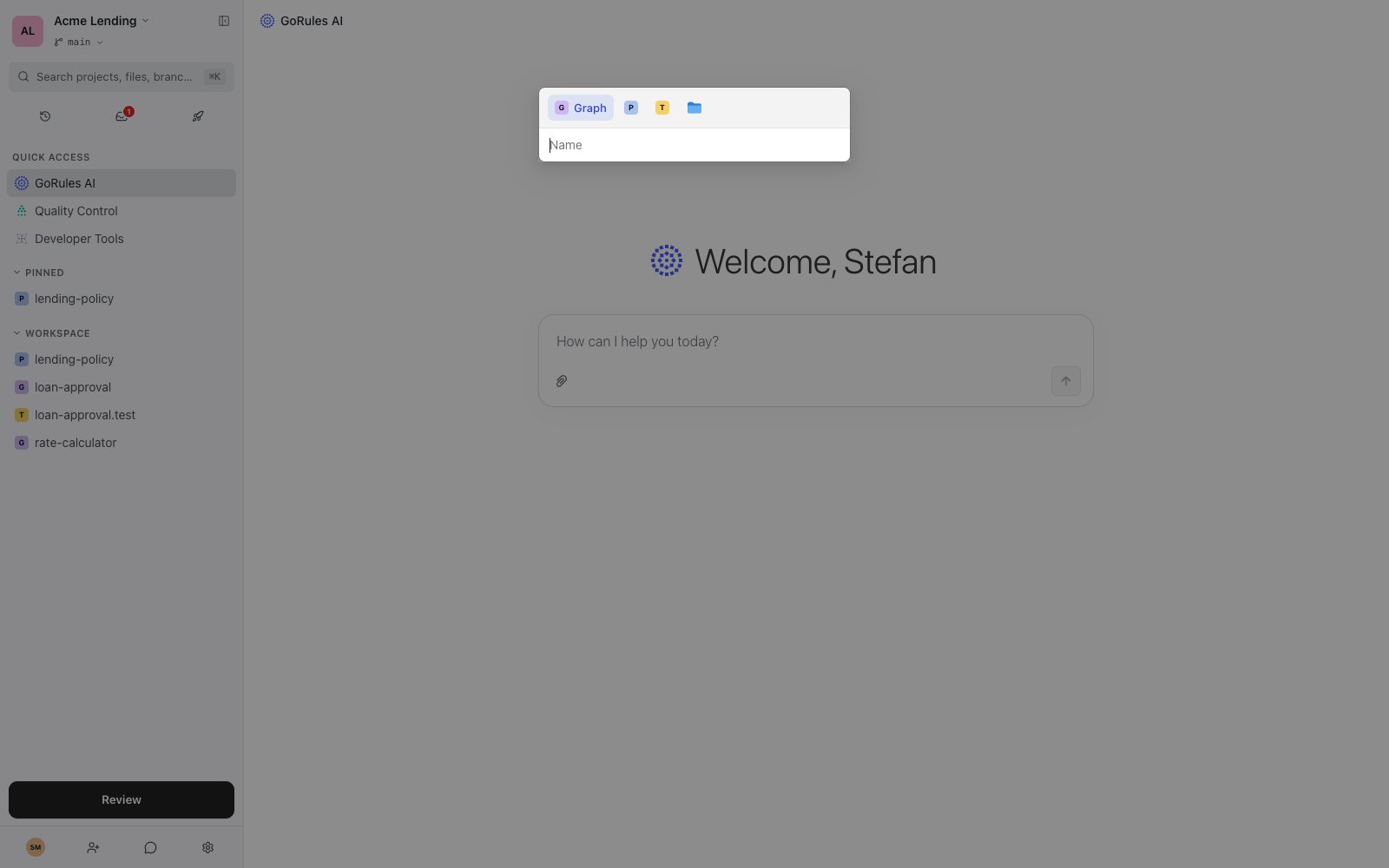
The New dialog
Working with files
Right-click a file for its actions: Open, Rename, Move to, Copy to, Download, Copy URL, and Reset to discard local changes. Folders additionally offer Import, Copy all, and Download all as zip. You can also drag files - or a whole zip archive - from your desktop into the workspace to import them. Everything you edit stays a local draft on your branch until you save it from the Review page. The Changes section shows exactly what you’ve touched, so you can revert a single file or all changes before committing.Searching inside documents
The ⌘K search looks inside your documents, not just at their names. It matches headings, expressions, decision table cells, dictionary entries, data model properties, node names, and more, then deep-links you to the exact block or node. Use it to answer questions like “where do we referencecustomer.tier?” without opening files one by one.
Business and developer modes
The Developer mode switch in the editor header changes how rules are displayed:- Business mode (default off state) renders expressions as natural-language sentences - “applicant.employment is one of Employed, Self-employed” - using the labels from your dictionaries.
- Developer mode shows the underlying ZEN expressions.
Next steps
Decision graphs
Build rules on the visual canvas.
Policies
Share definitions and dictionaries across graphs.
Testing
Add test files and keep coverage green.
Review & save
Commit your changes with pre-flight checks.