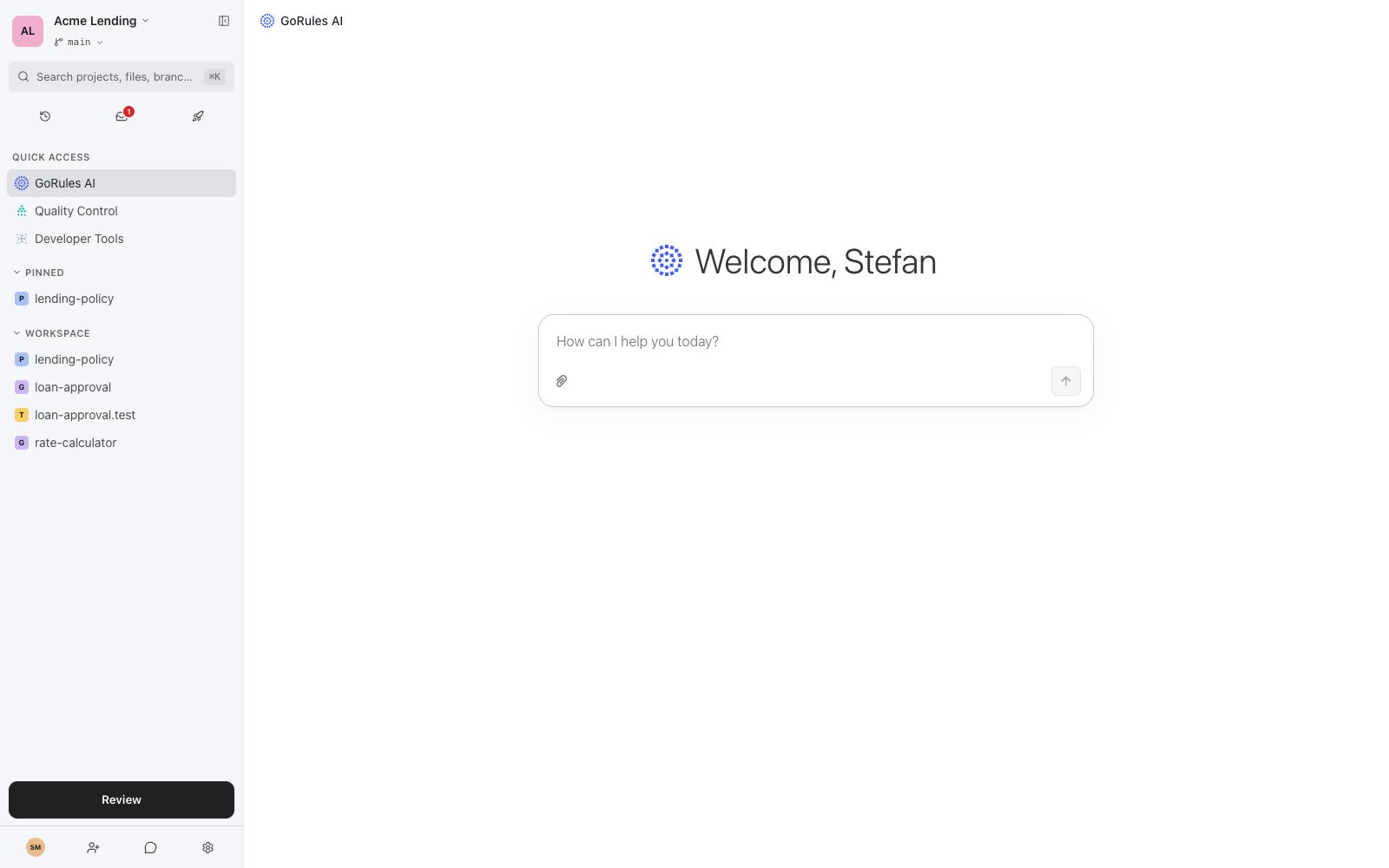
GoRules AI is a built-in assistant that helps you build, modify, and test decision graphs using natural language. Instead of manually configuring every node, edge, and rule, you describe what you need and the AI constructs or updates the graph for you.

Availability

AI features require:
  • A plan with AI enabled (check your organization’s license)
  • An LLM provider configured by your administrator
If your plan does not include AI, the assistant panel displays a message prompting you to upgrade. If AI is enabled on your plan but the LLM provider has not been configured, you will see a link to the setup guide.

Getting started

  1. Open any branch and navigate to a decision graph.
  2. The AI assistant panel appears at the bottom of the editor.
  3. Type a message in the input field or click one of the suggested prompts.
  4. The assistant reads your current graph, plans the changes, and applies them directly.
  5. Review the results in the graph editor. All changes are reflected immediately.

Welcome screen suggestions

When you open a new conversation, three quick-start suggestions are available:
  • Simulate - runs the current graph with sample data and shows results
  • Explain the graph - walks through the graph structure step by step
  • Add validation rules - creates input validation nodes for the graph

What the AI can do

Build and modify graphs

Describe a decision graph in plain language and the AI creates the nodes, edges, and rules for you. It supports all node types: decision tables, expression nodes, function nodes, switch nodes, and sub-decisions. Examples:
  • “Create a loan approval decision table with rules for credit score, income, and debt ratio”
  • “Add a switch node that routes based on customer tier: gold, silver, bronze”
  • “Replace row 3 in the pricing table with a 15% discount for orders over $500”
  • “Rename the ‘Check Eligibility’ node to ‘Validate Application‘“

Edit decision tables

The AI can add, replace, and remove individual rows in a decision table by index. It understands the cell format: empty cells are wildcards, quoted strings like "US" are exact matches, and bare comparisons like > 50 work as expected.

Simulate and validate

Ask the AI to run the graph with test inputs. It executes the graph in your browser and reports the output along with node-level trace data for debugging. It can also validate individual Zen expressions without running the full graph. Examples:
  • “Simulate this graph with { age: 25, income: 60000 }
  • “Check if the expression sum(map(items as item, item.price)) is valid”

Manage test cases

The AI can create, update, and run persistent test cases for your graphs. Test cases use subset matching: the actual output passes if it contains all expected fields. Examples:
  • “Create test cases for the fraud detection graph covering happy path and edge cases”
  • “Run all tests and show me which ones fail”

Cross-file analysis

For projects with multiple decision files, the AI can search across all files for field names, expressions, or patterns. It also understands the dependency graph - which files call which sub-decisions. Examples:
  • “Which files reference the customer.tier field?”
  • “Show me the dependency graph for this project”

Use templates

The AI can search a library of pre-built decision graph templates and apply them to your project. Examples:
  • “Search templates for shipping cost calculation”
  • “Apply the airline eligibility template”

File attachments

You can attach images and text files to your messages. Drag and drop files onto the chat panel, click the paperclip icon, or paste from your clipboard. Long pasted text (over 500 characters) is automatically converted to a file attachment.

Prompts that work well

Be specific about what you want. The more detail you provide, the better the result.
GoalGood promptWhy it works
Build a table”Create a decision table for shipping rates based on weight (< 1kg, 1-5kg, > 5kg) and zone (domestic, international)“Specifies inputs, outputs, and categories
Modify rules”In the pricing table, change row 2 to give a 20% discount instead of 15%“References the specific row and the change
Add logic”Add a switch node after the validation step that routes high-risk applications to manual review”Describes placement and routing condition
Debug”Simulate with { country: "US", amount: 1500 } and show trace data for the tax calculation node”Provides concrete test input and asks for traces
Refactor”Split the eligibility check into two tables: one for age/income and one for credit history”Describes the desired structure
Less effective prompts:
  • “Make it better” - too vague
  • “Fix the bug” - describe the expected vs actual behavior instead
  • “Add everything” - break into smaller requests

How the assistant works

The AI follows an agentic workflow:
  1. Context - it calls get_current_context to understand the current graph structure and which node is focused.
  2. Plan - for complex changes (3+ nodes, cross-file edits, ambiguous requirements), it presents a structured plan and waits for your approval before proceeding.
  3. Execute - it calls mutation tools to add, update, or remove nodes, edges, and rules.
  4. Verify - it checks the updated graph and may simulate with test data to confirm correctness.
The assistant streams responses in real time. You can see its reasoning steps and tool calls as they happen. If it’s taking a wrong approach, click the stop button and redirect it.

Context window

A progress bar in the bottom-right corner shows how much of the context window has been used. When it reaches 70%, the assistant automatically compacts the conversation history to free up space. You can also manually compact or clear the chat using the toolbar buttons.

Token usage

Token usage (input and output) is tracked per organization with daily limits set by your license. Hover over the context bar to see a breakdown.

Supported LLM providers

Your administrator configures the LLM provider via environment variables on the server. Enterprise customers can bring their own LLM.
ProviderLLM_PROVIDER value
OpenAIopenai
Anthropic (Claude)anthropic
Google (Gemini)google
Amazon Bedrockamazon-bedrock
Azure OpenAIazure-openai

Configuration

The following environment variables control AI behavior:
VariableDescriptionDefault
LLM_PROVIDERLLM provider to useRequired
LLM_MODELModel name (e.g., gpt-4o, claude-sonnet-4-20250514)Required
LLM_API_KEYAPI key for the providerRequired
LLM_TEMPERATURESampling temperature0.4
LLM_CONTEXT_WINDOWContext window size in tokensProvider default
LLM_MAX_OUTPUT_TOKENSMaximum tokens per response32000
LLM_THINKING_LEVELExtended thinking level: high, medium, lowmedium
For detailed deployment configuration, see Deployment settings.

MCP integration

The AI assistant connects to external AI tools through the MCP integration. When you connect the GoRules CLI to your browser session, AI-powered editors like Claude Code, Cursor, and Windsurf can interact with the same tools the built-in assistant uses. See MCP integration for setup instructions.