> ## Documentation Index
> Fetch the complete documentation index at: https://docs.gorules.io/llms.txt
> Use this file to discover all available pages before exploring further.
# Workspace
> Browse, create, and organise the documents in your project - graphs, policies, tests, and folders.
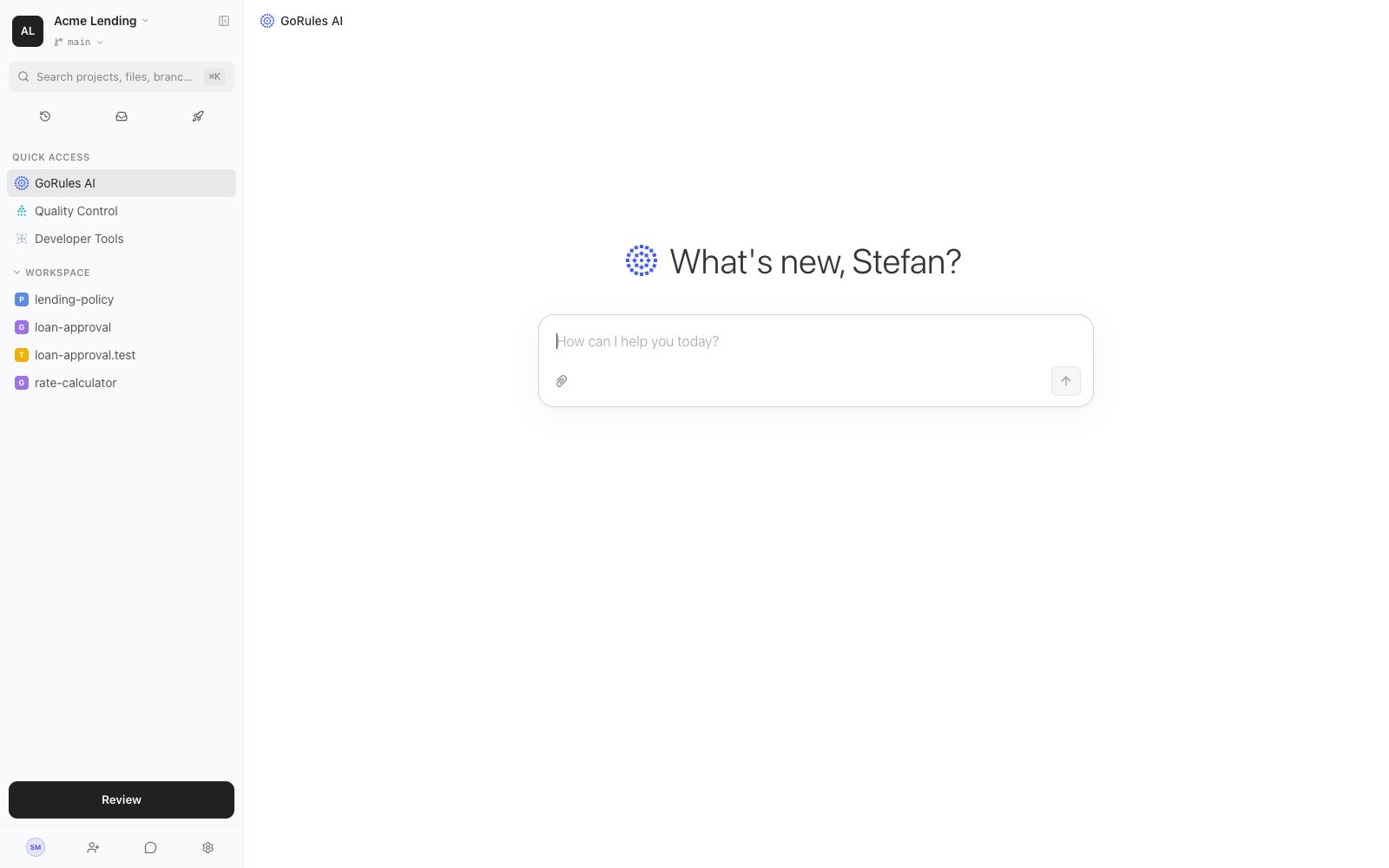
The workspace is your project's home. The sidebar lists every document on the current branch, tracks your unsaved changes, and gives you one-click access to GoRules AI, Quality Control, and Developer Tools.
 ## The sidebar
| Section | What it contains |
| --------------------------- | ----------------------------------------------------------------------------------------------- |
| Branch selector | The branch you are working on. Every edit is a draft on this branch until you save it. |
| Search | Press ⌘K to search projects, files, and branches - and the content inside documents. |
| History, Requests, Releases | Commit history, open [requests](/brms/review/requests), and [releases](/brms/deploy/releases). |
| Quick Access | GoRules AI, [Quality Control](/brms/quality/quality-control), and Developer Tools. |
| Changes | Appears once you have unsaved edits. Revert individual files, folders, or everything. |
| Workspace | The file tree. Hover a file to pin it; pinned files stay at hand across sessions. |
| Review | Opens [Review & save](/brms/review/review) with a badge showing how many changes are ready. |
## Document types
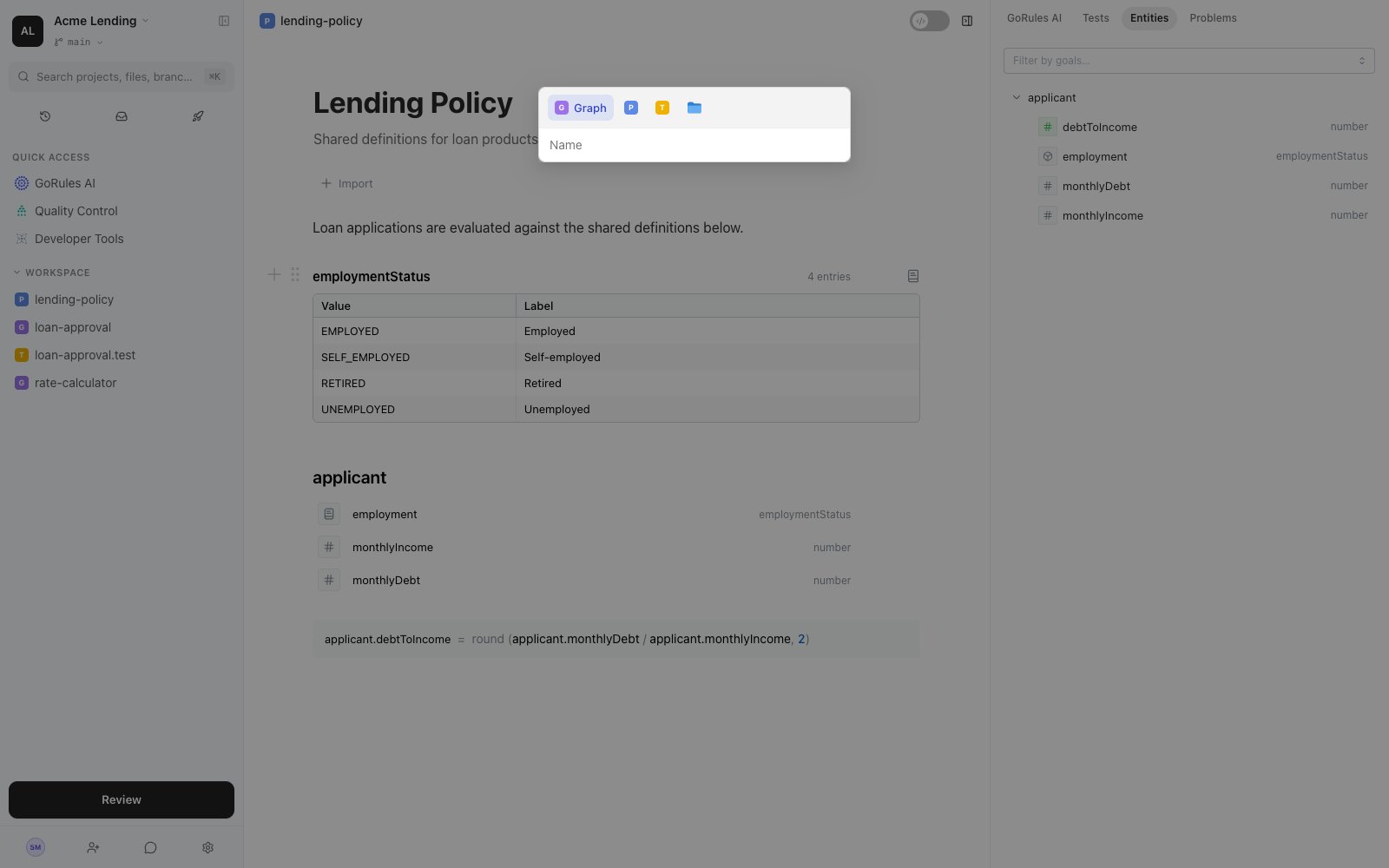
Click **New** in the Workspace section to create a document:
| Type | What it is |
| ------ | ------------------------------------------------------------------------------------------------------------------------------ |
| Graph | A [decision graph](/brms/build/graphs) - nodes and edges that evaluate an input to an output. |
| Policy | A [policy](/brms/build/policies) - shared definitions, dictionaries, and rules that graphs can import. |
| Test | A [test file](/brms/build/testing) - named test cases that run against a graph. Name it after the graph with a `.test` suffix. |
| Folder | A directory for organising documents. |
## The sidebar
| Section | What it contains |
| --------------------------- | ----------------------------------------------------------------------------------------------- |
| Branch selector | The branch you are working on. Every edit is a draft on this branch until you save it. |
| Search | Press ⌘K to search projects, files, and branches - and the content inside documents. |
| History, Requests, Releases | Commit history, open [requests](/brms/review/requests), and [releases](/brms/deploy/releases). |
| Quick Access | GoRules AI, [Quality Control](/brms/quality/quality-control), and Developer Tools. |
| Changes | Appears once you have unsaved edits. Revert individual files, folders, or everything. |
| Workspace | The file tree. Hover a file to pin it; pinned files stay at hand across sessions. |
| Review | Opens [Review & save](/brms/review/review) with a badge showing how many changes are ready. |
## Document types
Click **New** in the Workspace section to create a document:
| Type | What it is |
| ------ | ------------------------------------------------------------------------------------------------------------------------------ |
| Graph | A [decision graph](/brms/build/graphs) - nodes and edges that evaluate an input to an output. |
| Policy | A [policy](/brms/build/policies) - shared definitions, dictionaries, and rules that graphs can import. |
| Test | A [test file](/brms/build/testing) - named test cases that run against a graph. Name it after the graph with a `.test` suffix. |
| Folder | A directory for organising documents. |
 ## Working with files
Right-click a file for its actions: Open, Rename, Move to, Copy to, Download, Copy URL, and Reset to discard local changes. Folders additionally offer Import, Copy all, and Download all as zip. You can also drag files - or a whole zip archive - from your desktop into the workspace to import them.
Everything you edit stays a local draft on your branch until you save it from the [Review page](/brms/review/review). The **Changes** section shows exactly what you've touched, so you can revert a single file or all changes before committing.
## Searching inside documents
The ⌘K search looks inside your documents, not just at their names. It matches headings, expressions, decision table cells, dictionary entries, data model properties, node names, and more, then deep-links you to the exact block or node. Use it to answer questions like "where do we reference `customer.tier`?" without opening files one by one.
## Business and developer modes
The **Developer mode** switch in the editor header changes how rules are displayed:
* **Business mode** (default off state) renders expressions as natural-language sentences - "applicant.employment *is one of* Employed, Self-employed" - using the labels from your [dictionaries](/brms/build/policies#dictionaries).
* **Developer mode** shows the underlying ZEN expressions.
The mode is a personal display preference. It never changes what is stored or evaluated. See [Natural language](/learn/authoring/natural-language) for how sentences map to expressions.
## Next steps
Build rules on the visual canvas.
Share definitions and dictionaries across graphs.
Add test files and keep coverage green.
Commit your changes with pre-flight checks.
## Working with files
Right-click a file for its actions: Open, Rename, Move to, Copy to, Download, Copy URL, and Reset to discard local changes. Folders additionally offer Import, Copy all, and Download all as zip. You can also drag files - or a whole zip archive - from your desktop into the workspace to import them.
Everything you edit stays a local draft on your branch until you save it from the [Review page](/brms/review/review). The **Changes** section shows exactly what you've touched, so you can revert a single file or all changes before committing.
## Searching inside documents
The ⌘K search looks inside your documents, not just at their names. It matches headings, expressions, decision table cells, dictionary entries, data model properties, node names, and more, then deep-links you to the exact block or node. Use it to answer questions like "where do we reference `customer.tier`?" without opening files one by one.
## Business and developer modes
The **Developer mode** switch in the editor header changes how rules are displayed:
* **Business mode** (default off state) renders expressions as natural-language sentences - "applicant.employment *is one of* Employed, Self-employed" - using the labels from your [dictionaries](/brms/build/policies#dictionaries).
* **Developer mode** shows the underlying ZEN expressions.
The mode is a personal display preference. It never changes what is stored or evaluated. See [Natural language](/learn/authoring/natural-language) for how sentences map to expressions.
## Next steps
Build rules on the visual canvas.
Share definitions and dictionaries across graphs.
Add test files and keep coverage green.
Commit your changes with pre-flight checks.