> ## Documentation Index
> Fetch the complete documentation index at: https://docs.gorules.io/llms.txt
> Use this file to discover all available pages before exploring further.
# Testing
> Add test files next to your graphs and keep every rule change covered.
Tests in GoRules are documents, just like graphs. A test file holds named cases - an input and the output you expect - and runs them against a target graph. Because tests live on the branch with the rules they cover, changing a rule and updating its tests is one review, one commit.
## Creating a test file
Click **New** in the workspace and choose **Test**. Name the file after the graph it covers with a `.test` suffix - `loan-approval.test` for the `loan-approval` graph - and it's picked up automatically by [Quality Control](/brms/quality/quality-control) and the graph's Tests panel.
Each case in the test editor has three panes:
| Pane | What it holds |
| --------------- | --------------------------------------------------------------------------------------------------------------------------------------------- |
| Input | The JSON object sent to the graph. |
| Expected output | The fields you assert on. Matching is by subset - the case passes if the actual output contains every expected field with the expected value. |
| Actual output | What the last run produced, side by side with what you expected. |
Give cases descriptive names - "declined - low credit score", "review - high debt-to-income" - so a failure tells you what broke without opening the case.
## Running tests from the graph
The **Tests** tab in the graph editor shows every case that targets the open graph, with a live status hero: "All cases passing", or the number of failing cases.
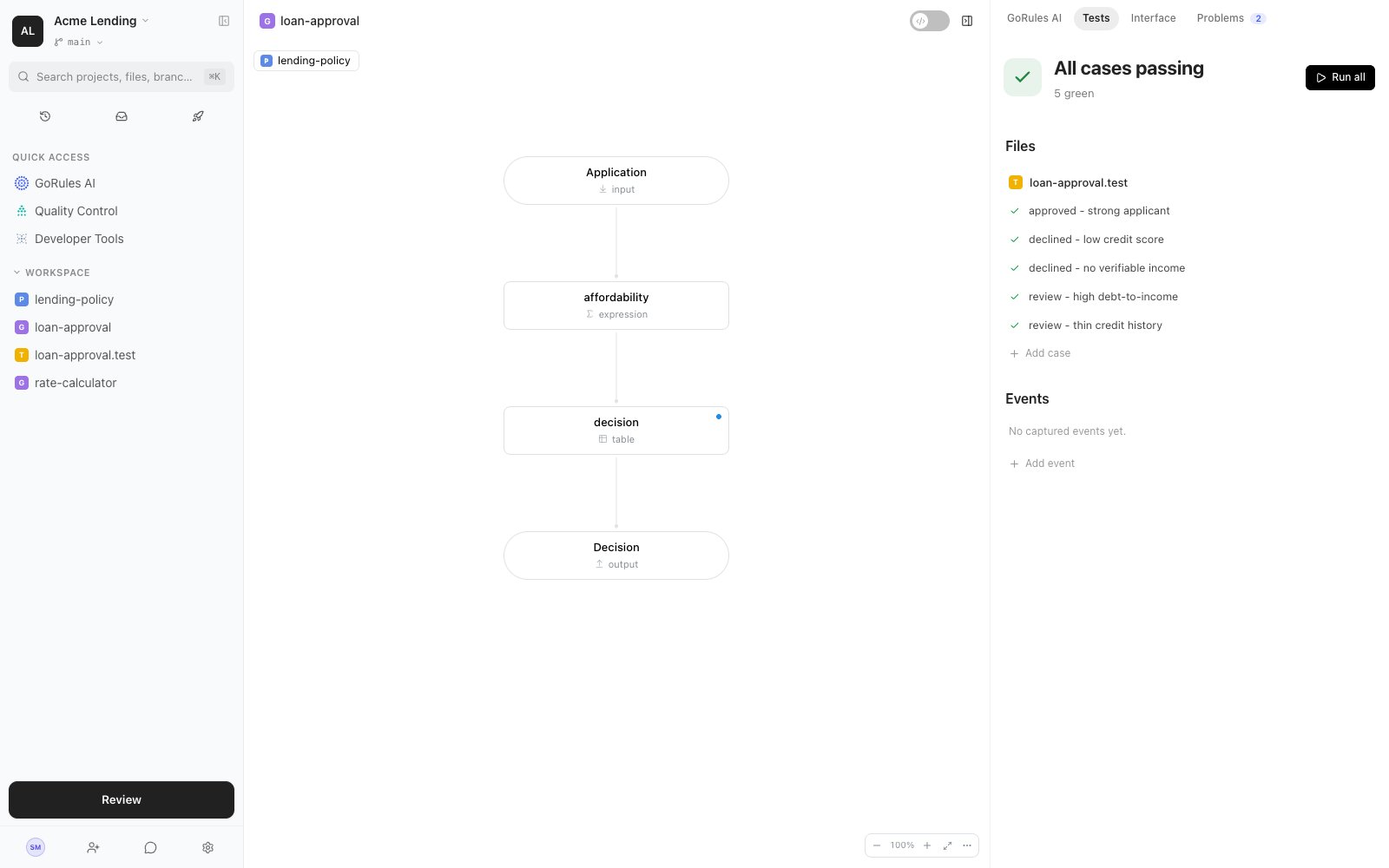 From here you can:
* **Run all** cases, run a single file, or run one case.
* **Add case** to append a new case to the file.
* Disable a case to skip it temporarily, or make it private so it only runs for you.
* **Simulate** the graph ad hoc, then promote a good run to a saved **event** - a captured real input that becomes a permanent regression check.
## Events
Events are captured evaluations: instead of hand-writing input JSON, you save an actual simulation (or a real traced request) as a test. They appear in the **Events** section of the Tests panel and run with the rest of the suite.
## Tests as a quality gate
Test results feed two places beyond the editor:
* [Quality Control](/brms/quality/quality-control) aggregates every test file in the workspace, tracks which graphs have no coverage at all, and exports a PDF report.
* [Pre-flight checks](/brms/review/review) on the Review page run your tests before you save, so failing cases are visible at the moment you commit.
Graphs without a test file are listed as "untested" on the Quality Control page. Adding even one happy-path case gets a graph onto the coverage radar.
From here you can:
* **Run all** cases, run a single file, or run one case.
* **Add case** to append a new case to the file.
* Disable a case to skip it temporarily, or make it private so it only runs for you.
* **Simulate** the graph ad hoc, then promote a good run to a saved **event** - a captured real input that becomes a permanent regression check.
## Events
Events are captured evaluations: instead of hand-writing input JSON, you save an actual simulation (or a real traced request) as a test. They appear in the **Events** section of the Tests panel and run with the rest of the suite.
## Tests as a quality gate
Test results feed two places beyond the editor:
* [Quality Control](/brms/quality/quality-control) aggregates every test file in the workspace, tracks which graphs have no coverage at all, and exports a PDF report.
* [Pre-flight checks](/brms/review/review) on the Review page run your tests before you save, so failing cases are visible at the moment you commit.
Graphs without a test file are listed as "untested" on the Quality Control page. Adding even one happy-path case gets a graph onto the coverage radar.